> ## Documentation Index
> Fetch the complete documentation index at: https://bruno-a6972042-mintlify-5cf3e75d.mintlify.site/llms.txt
> Use this file to discover all available pages before exploring further.
# License Management Portal
Bruno provides a licensing management portal for the purposes of:
* Provisioning and deprovisioning licenses
* Managing License Administrators associated with your account
* Viewing details related to your Bruno subscription
## Accessing the Portal
If you've been designated as a License Administrator, either through purchasing on our website or through assignment by another admin:
* Navigate to [https://license.usebruno.com/](https://license.usebruno.com/)
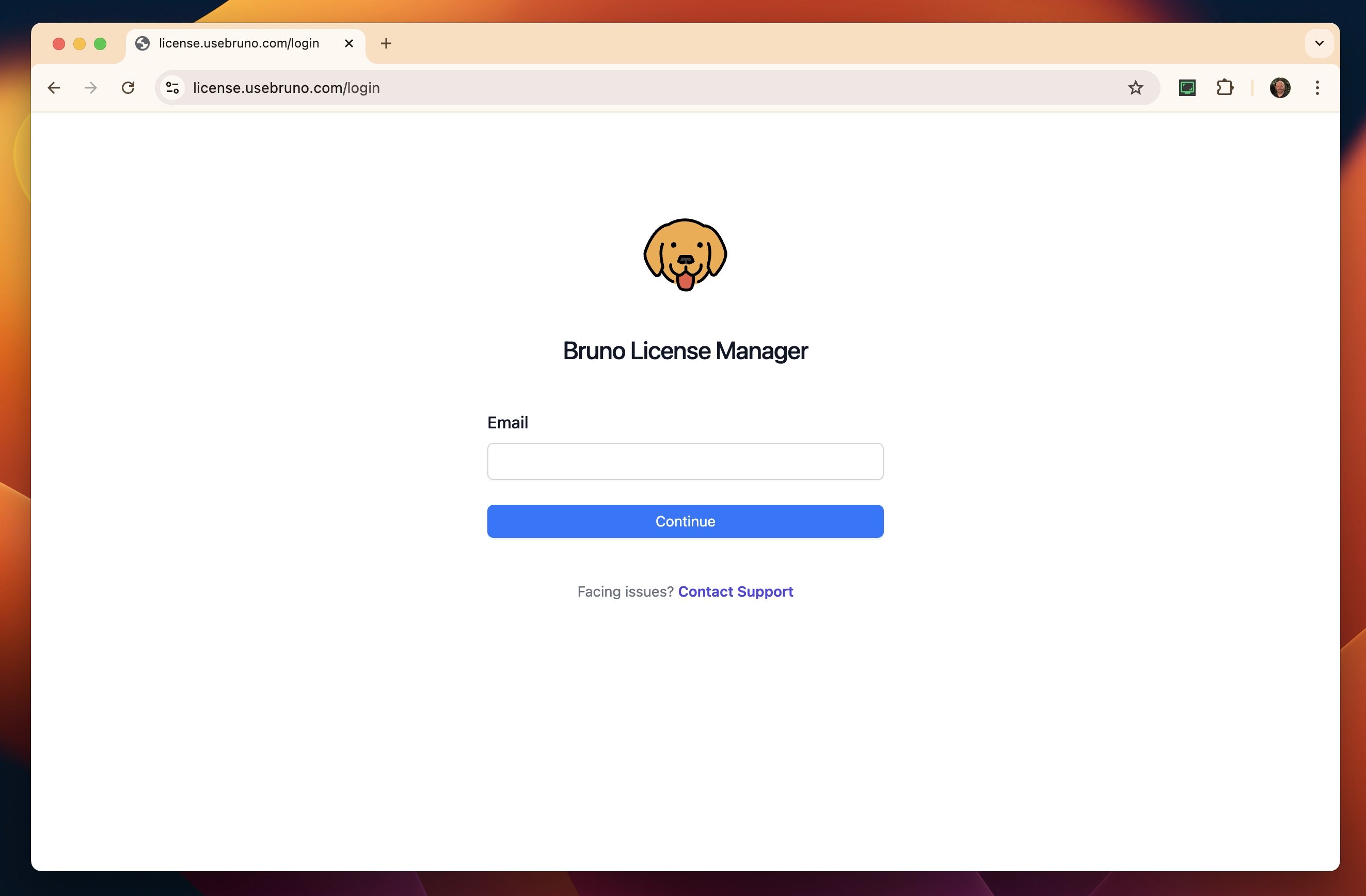 * Enter your email address and press `continue`
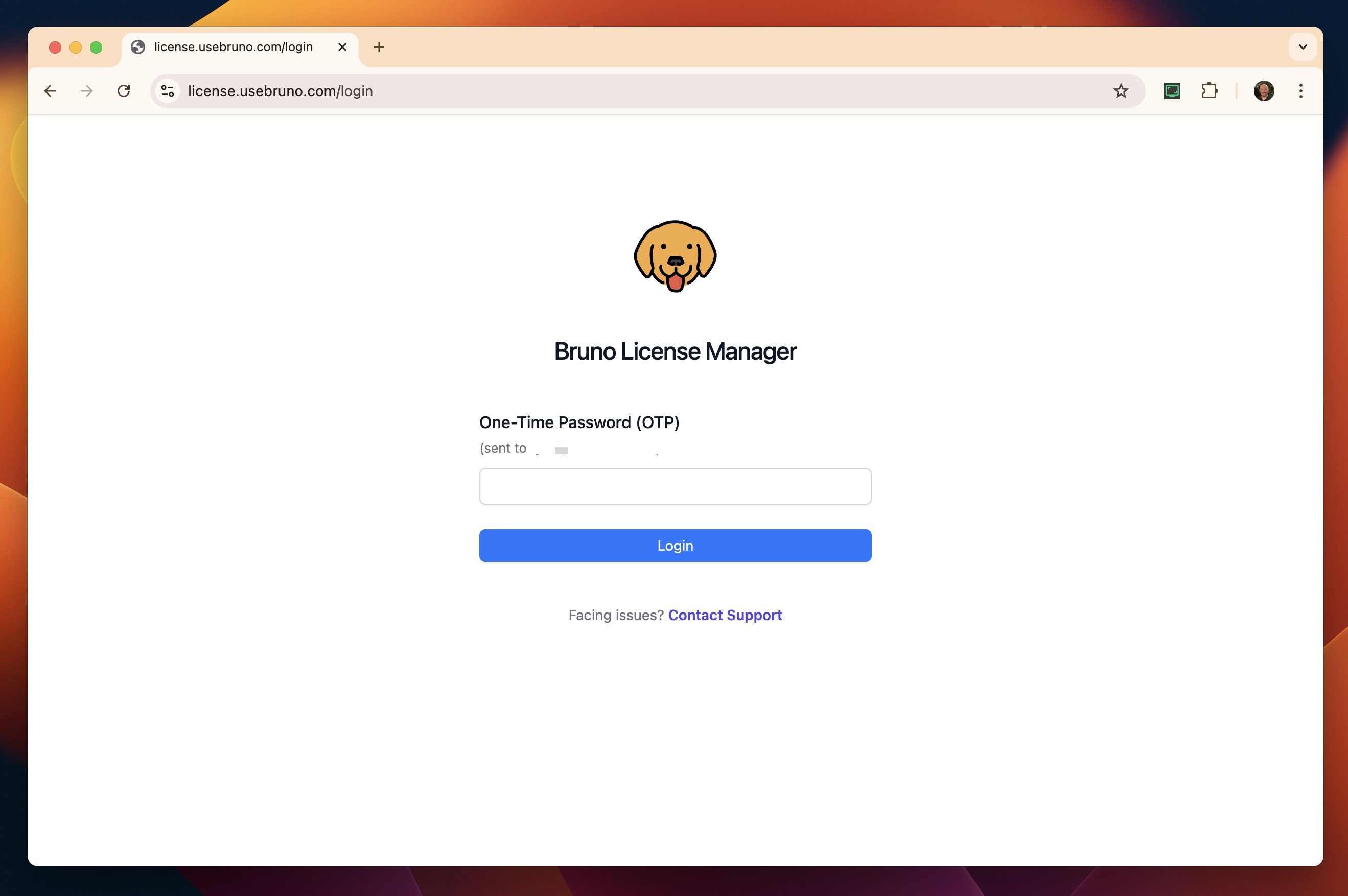
* Retrieve and enter the OTP (one time password) that was sent to your email
* Enter your email address and press `continue`
* Retrieve and enter the OTP (one time password) that was sent to your email
 * You have now accessed the portal!
## Assigning licenses
### Adding a single user
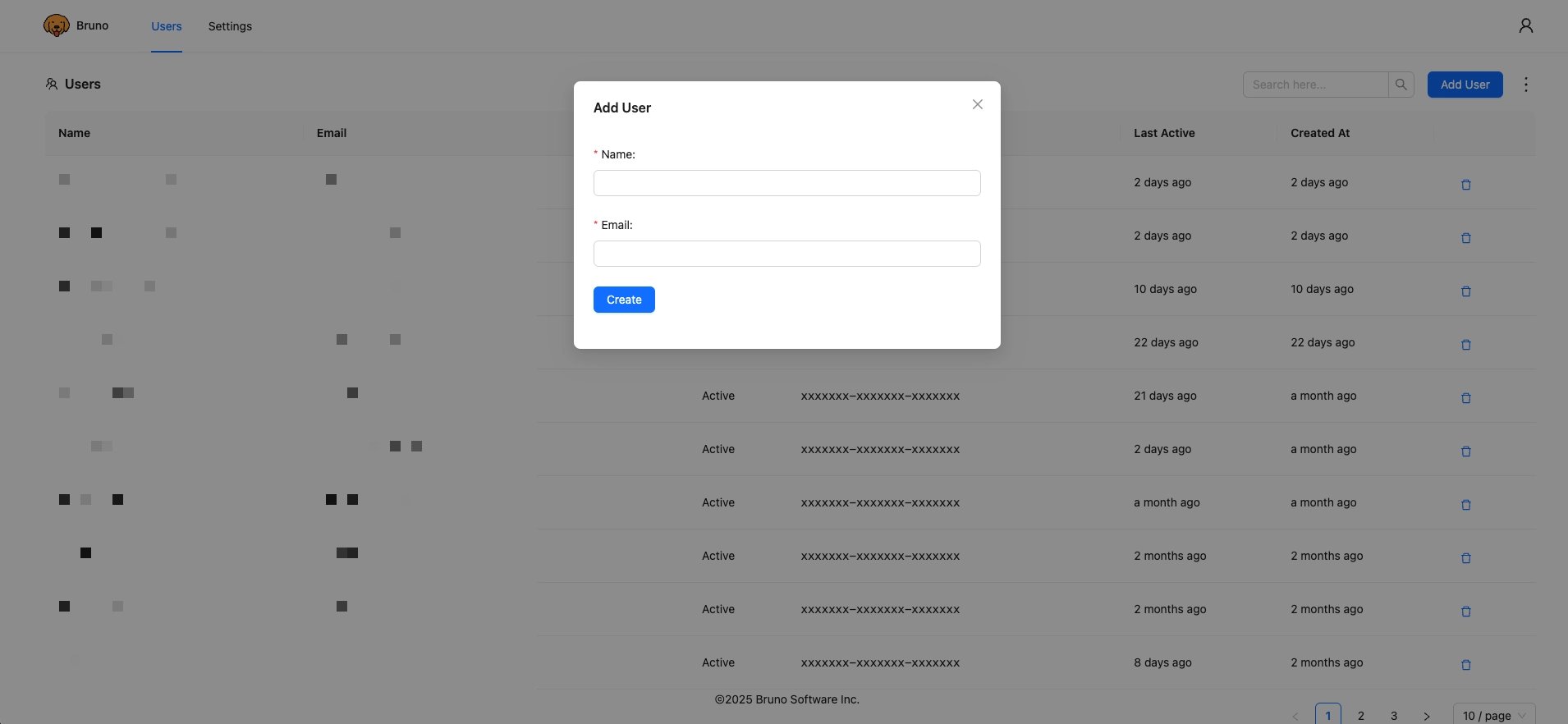
* Select `Add User`
* Enter the name and email of the user you'd like to add
* Click `Create`
* You have now accessed the portal!
## Assigning licenses
### Adding a single user
* Select `Add User`
* Enter the name and email of the user you'd like to add
* Click `Create`
 * The user will automatically receive an email with their license key
### Adding users in bulk
> Ultimate licenses come with the ability to add users via a CSV upload
* Click ellipsis next to `Add User`
* Select `Import Users`
* *optionally download the sample CSV to view the format for user upload*
* Click `Upload`and select your file
* Click `Add Users`
* The user will automatically receive an email with their license key
### Adding users in bulk
> Ultimate licenses come with the ability to add users via a CSV upload
* Click ellipsis next to `Add User`
* Select `Import Users`
* *optionally download the sample CSV to view the format for user upload*
* Click `Upload`and select your file
* Click `Add Users`
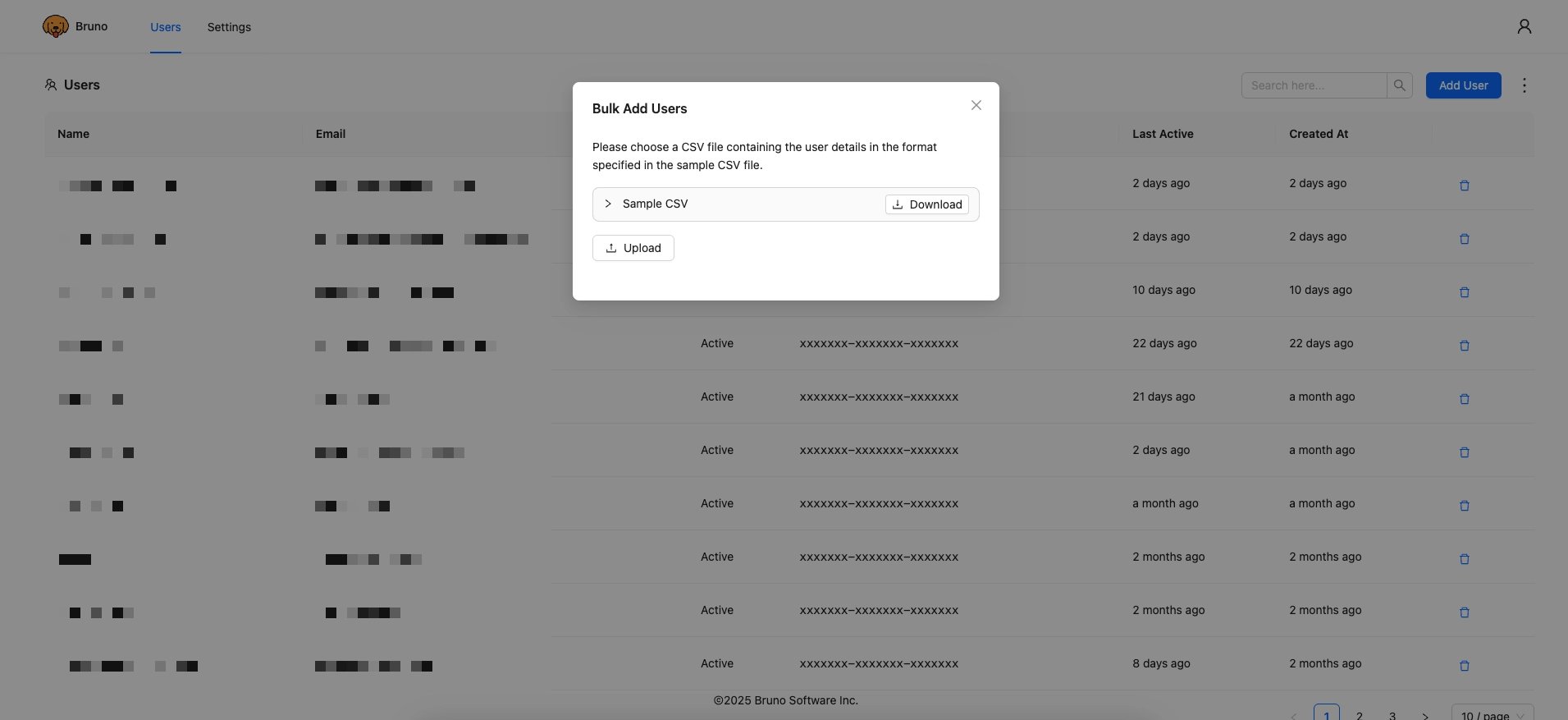 * Users will automatically receive an email with their respective license key
## Removing licenses
### Removing a Single User
* Click on the trash can icon in the user's row
* Select `Delete`
### Remove Users in bulk
* Click ellipsis next to `Add User`
* Select `Delete Users`
* *optionally download the sample CSV to view the format for user deletion*
* Click `Upload`and select your file
* Click `Delete Users`
* Users will automatically receive an email with their respective license key
## Removing licenses
### Removing a Single User
* Click on the trash can icon in the user's row
* Select `Delete`
### Remove Users in bulk
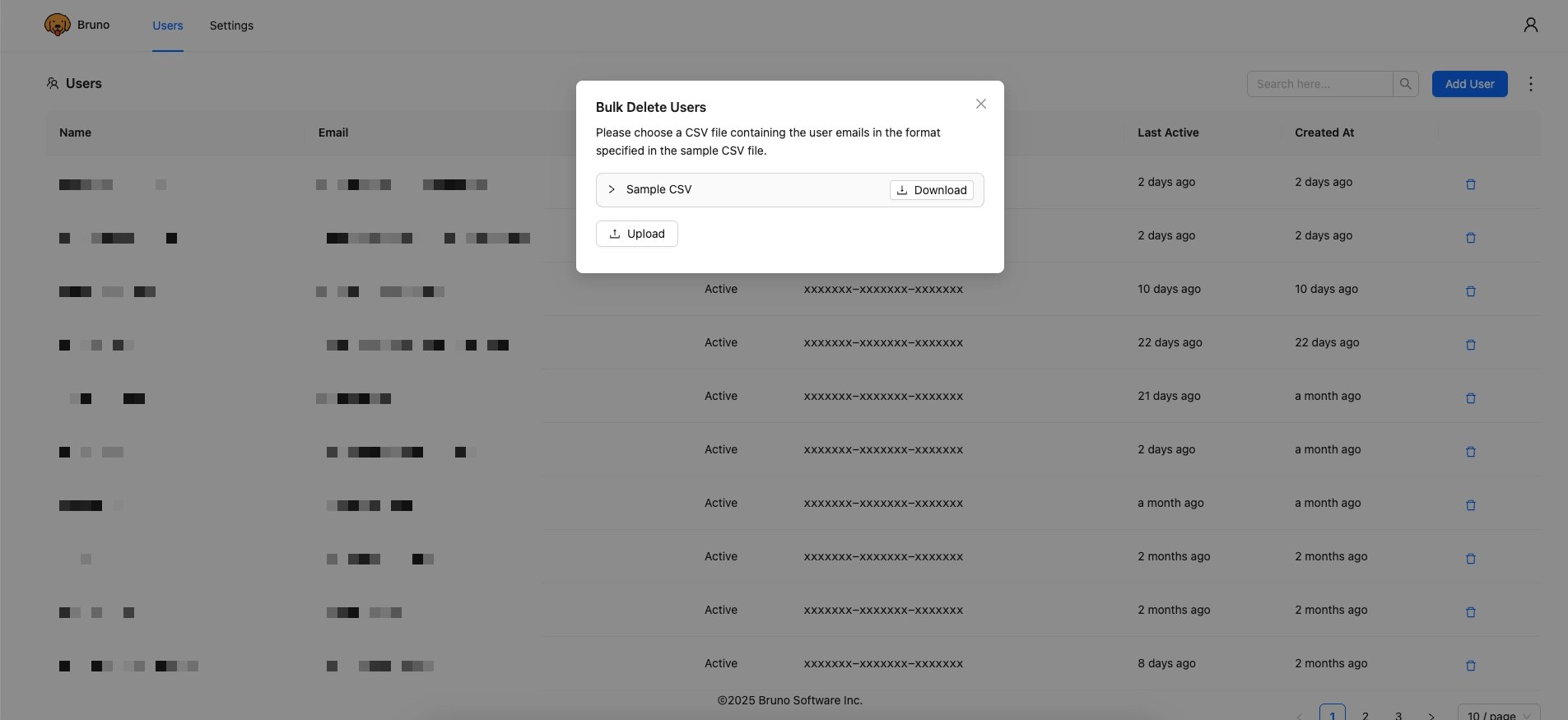
* Click ellipsis next to `Add User`
* Select `Delete Users`
* *optionally download the sample CSV to view the format for user deletion*
* Click `Upload`and select your file
* Click `Delete Users`
 ## Adding License Administrators
The number of License Administrators you can have associated with your account is based on your [plan type ↗](https://www.usebruno.com/pricing).
* Navigate to `Settings`
* Click on `Admins` page
## Adding License Administrators
The number of License Administrators you can have associated with your account is based on your [plan type ↗](https://www.usebruno.com/pricing).
* Navigate to `Settings`
* Click on `Admins` page
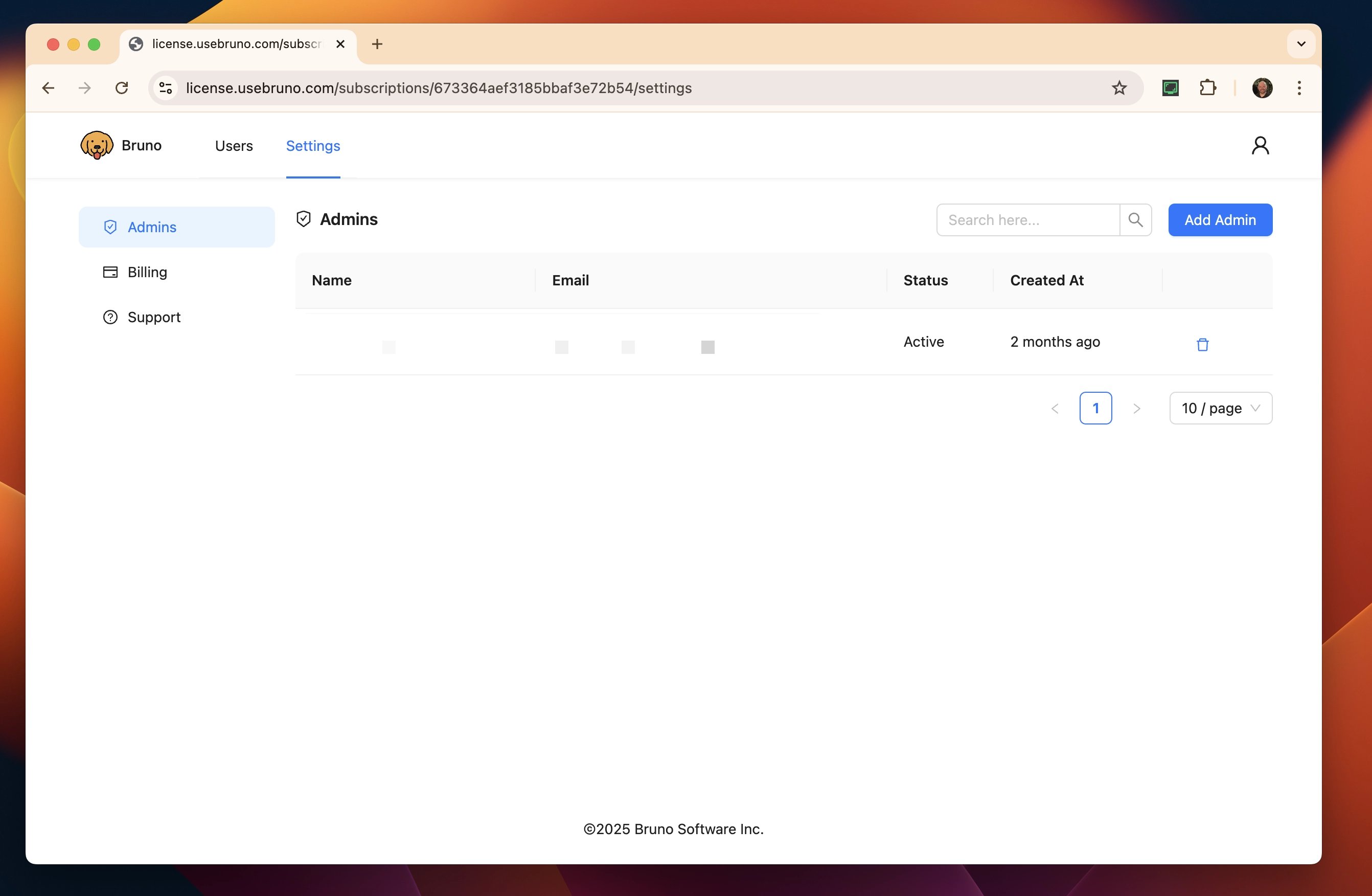 * Select `Add Admin`
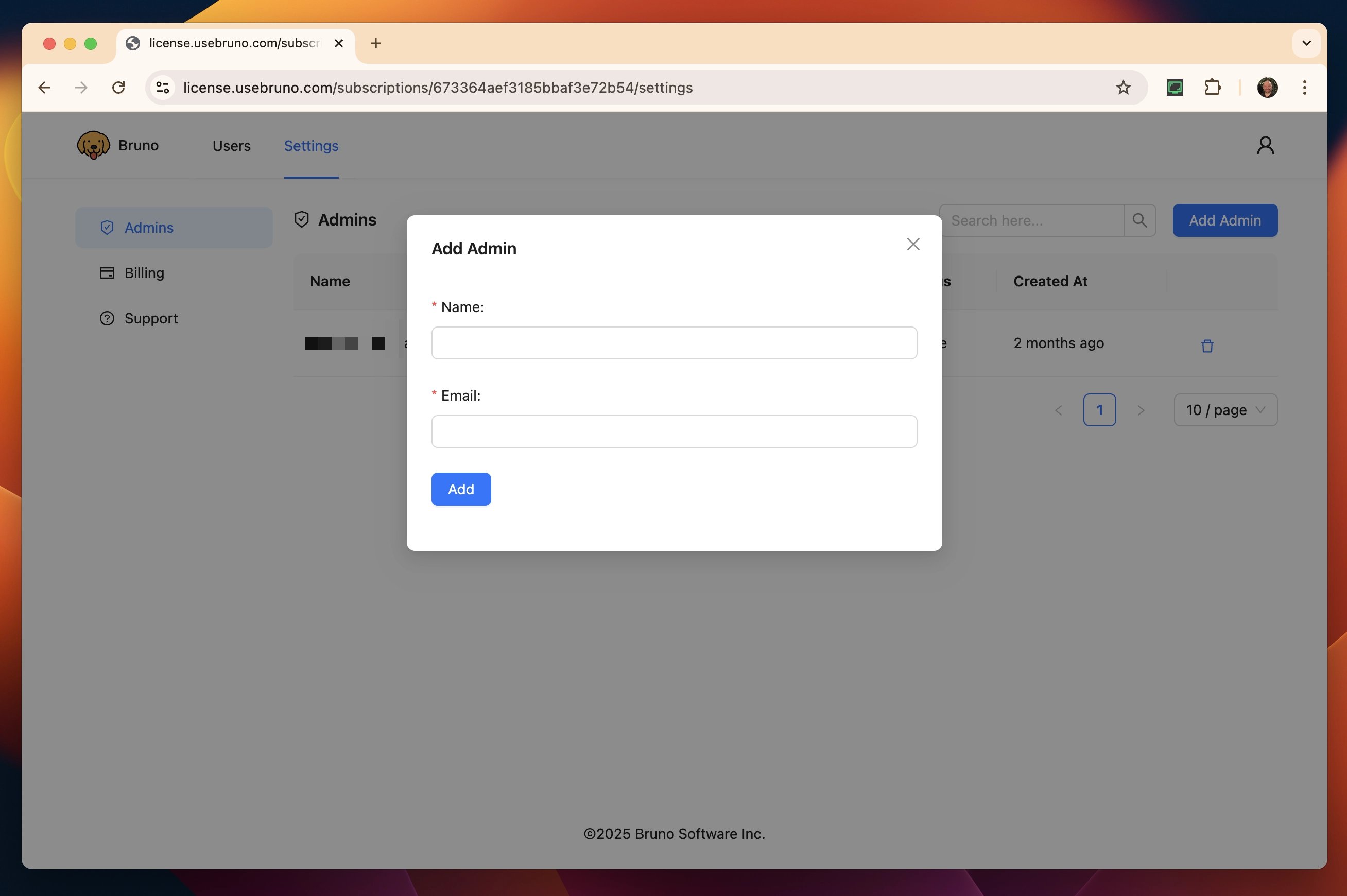 * Enter their name and email
* Select `Add`
## View Plan Details
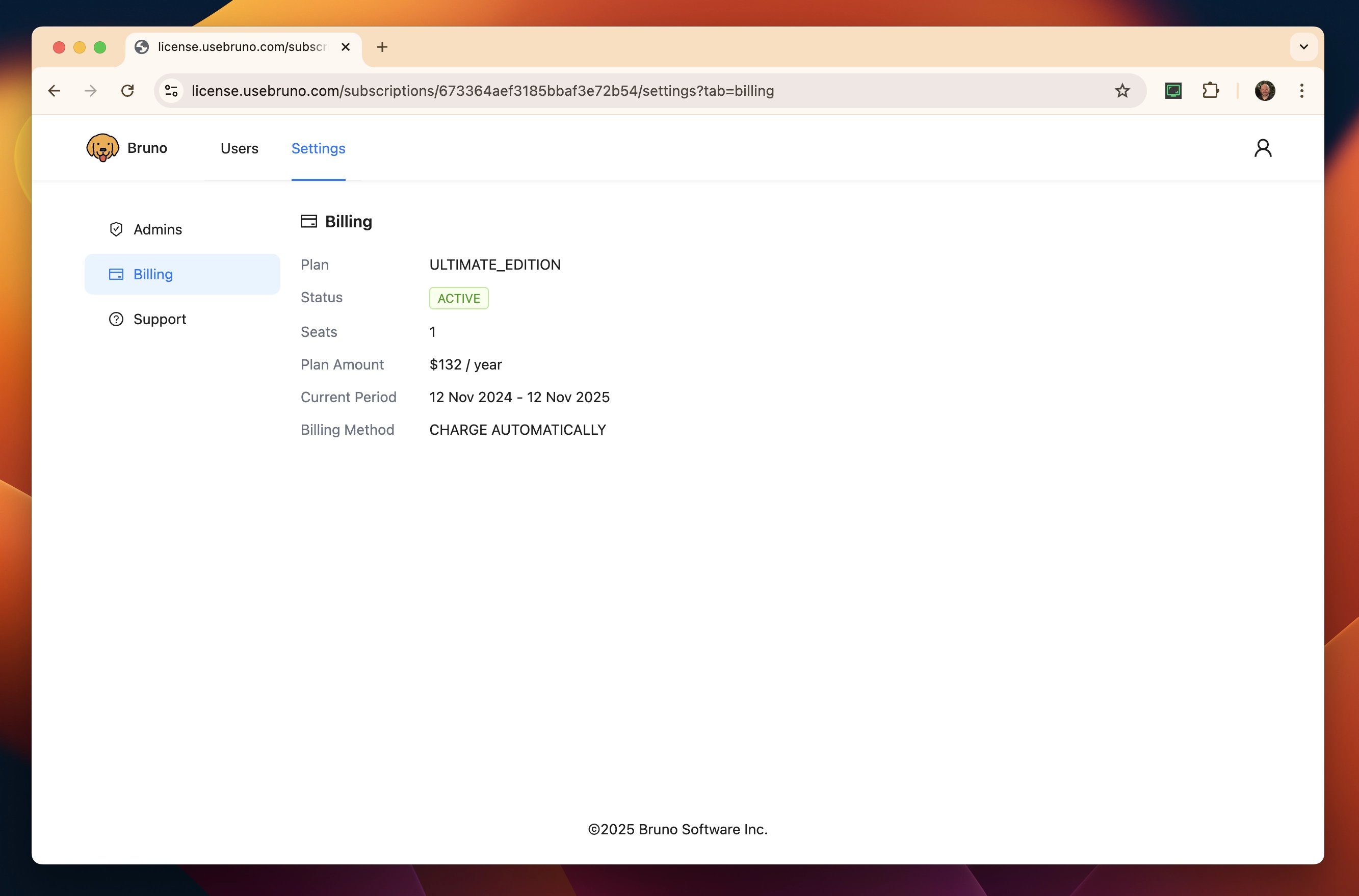
You can view the type of plan, number of licenses, and subscription dates by:
* Navigate to `Settings`
* Select `Billing`
* Enter their name and email
* Select `Add`
## View Plan Details
You can view the type of plan, number of licenses, and subscription dates by:
* Navigate to `Settings`
* Select `Billing`