

If you have an existing collection inside of another tool that you would like to import, please see Importing Collections ↗.
How to Create a Collection
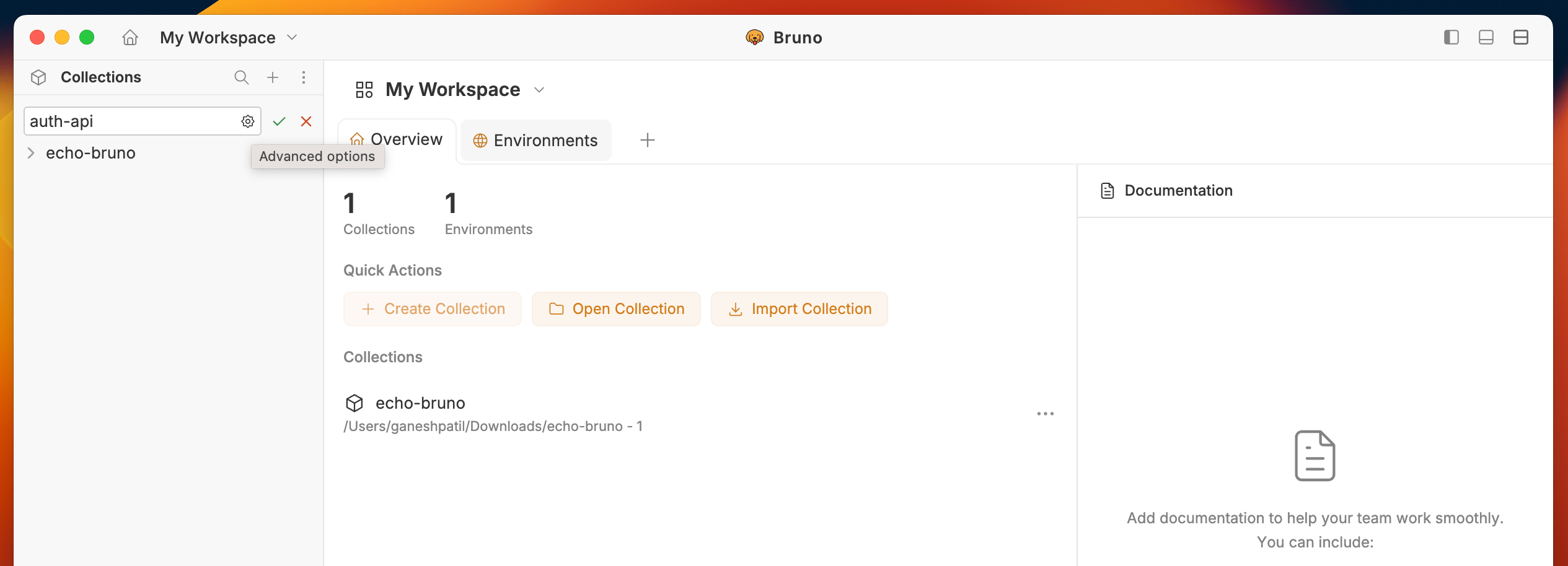
- Open Bruno and navigate to the home screen
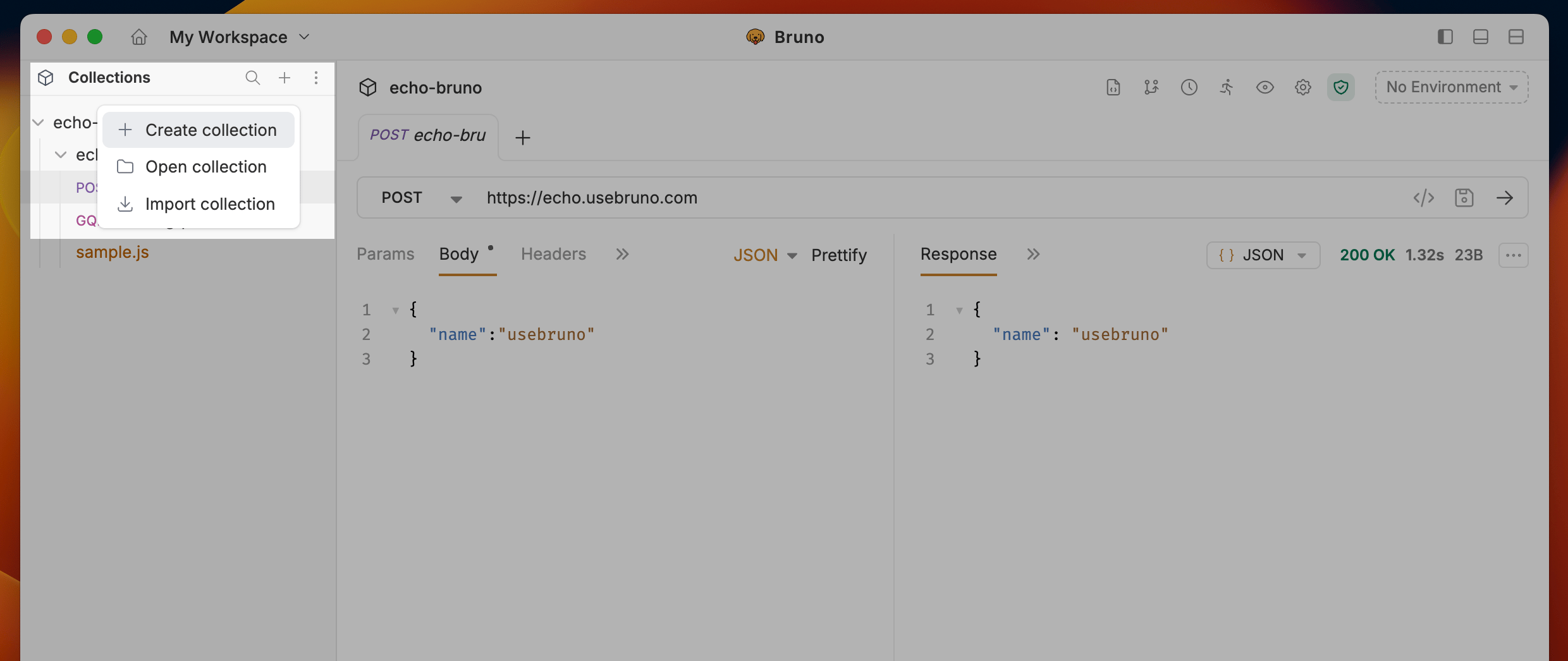
- Click on the
+button and select Create Collection from the dropdown.
- Enter a name for your collection.
- (Optional):
- To store the collection at a custom location: click the settings icon (advanced options) and choose the desired folder on your system.
- Click on Options dropdown and select YAML to change the file format to YAML or BRU -> YAML recommended.
If you skip this, the collection is stored at the default location:
~/Documents/bruno (e.g. /Users/username/Documents/bruno). You can view or change the default location in Preferences → General tab. See Settings.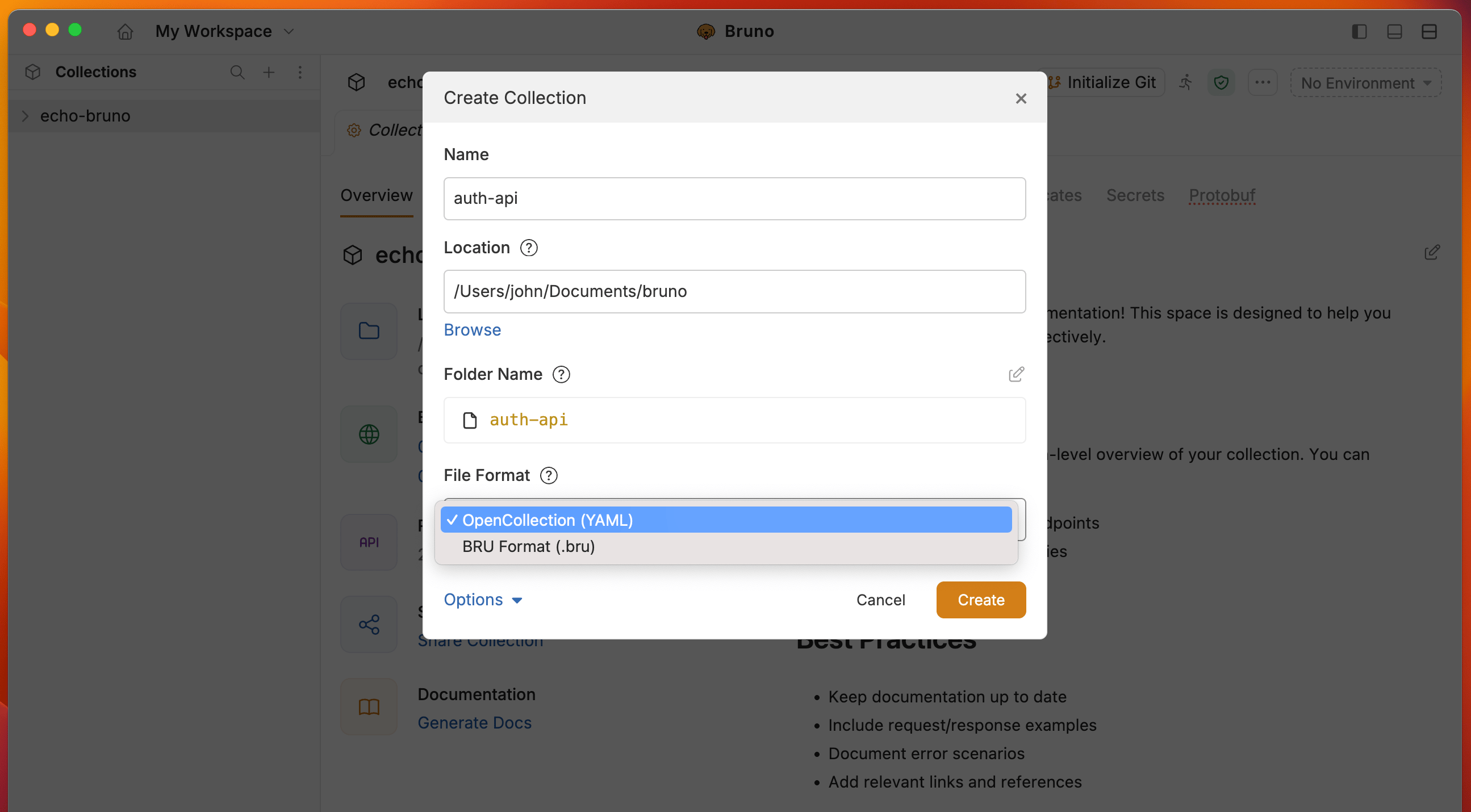
- Choose or confirm the location on your filesystem for the collection.
- Click Create
+ menu for related actions:
- Create a Collection - Creates a new collection in the current workspace.
- Open Collection - Opens one or more existing Bruno collections from a folder on disk.
- Import Collection - Imports a collection from other tools (Postman, GitHub Import, Insomnia, etc.).
How to open one or more collections
- Open Bruno and click the
+button in the left-top corner sidebar - Select Open Collection.
- Choose a folder on your filesystem.
- Bruno scans nested folders for Bruno collections (folders that contain
opencollection.ymlorbruno.json). - In the open collection modal, review the collections found.
- Select one or more collections, then click Open.
Opening a parent folder that contains multiple collections is useful for monorepos and shared team directories. Select every collection you need in the modal, then open them together.
Close or delete a collection
Bruno separates closing a collection (removing it from the workspace) from deleting it (removing the files from disk).Close a collection (keep files)
Closing a collection removes it from the workspace sidebar. The files stay on disk and can be re-opened later.- In the sidebar, hover over the collection and open its menu (three-dot icon), or right-click the collection name.
- Select Remove.
- Confirm in the Remove Collection dialog. If the collection has unsaved drafts, Bruno prompts you to save or discard them first.
Delete a collection (permanent)
Deleting a collection permanently removes the collection files from disk. This action cannot be undone.- Open the workspace home page.
- Locate the collection card and open its menu.
- Select Delete.
- In the confirmation dialog, type
deleteto enable the Delete button, then confirm.
Automatic Git Configuration
When you create a new collection or workspace, Bruno automatically generates a.gitignore file with recommended settings to ensure proper Git hygiene out of the box.
What’s Included in .gitignore:
- Temporary files and caches
- Environment variable files with sensitive data
- Generated metadata
- System-specific files
Custom Collection Names
You can use any characters in your collection names, including special characters like/, [, ], *, etc. Bruno automatically handles filesystem compatibility by replacing unsupported characters with - in the filenames while preserving your original collection name.
Add a request ↗ to your collection as a next step!